User Guide
Doritus is an address book software for NUS teaching staff to manage student contacts. It is optimized for use via a Command Line Interface (CLI) while still having the benefits of a Graphical User Interface (GUI). If you can type fast, Doritus can get your contact management tasks done faster than traditional GUI apps.
- Quick start
-
Features
- Duplicate contacts
- Types of tags
- Input history
- Viewing help :
help - Adding a student:
add - Adding teaching staff:
add staff - Listing all persons :
list - Listing teaching staff only :
staffslist - Listing students only :
studentslist - Adding a tutor availability slot :
tutorslot - Viewing tutor availability dashboard :
tutordashboard - Editing a person :
edit - Adding tags to a person :
tag-add - Locating persons by name/tag:
find - Deleting a person :
delete - Clearing all entries :
clear - Double confirmation
- Exiting the program :
exit - Exporting contacts :
export - Importing contacts :
import - Saving the data
- Editing the data file
- FAQ
- Known issues
- Command summary
Quick start
-
Ensure you have Java
17or above installed on your Computer.
Mac users: Ensure you have the precise JDK version prescribed here. -
Download the latest
.jarfile from here. -
Copy the file to the folder you want to use as the home folder for your Doritus data.
-
Open a command terminal,
cdinto the folder you put the jar file in, and usejava -jarfollowed by the name of the.jarfile you downloaded (for examplejava -jar doritus-v1.5.jar), to run the application.
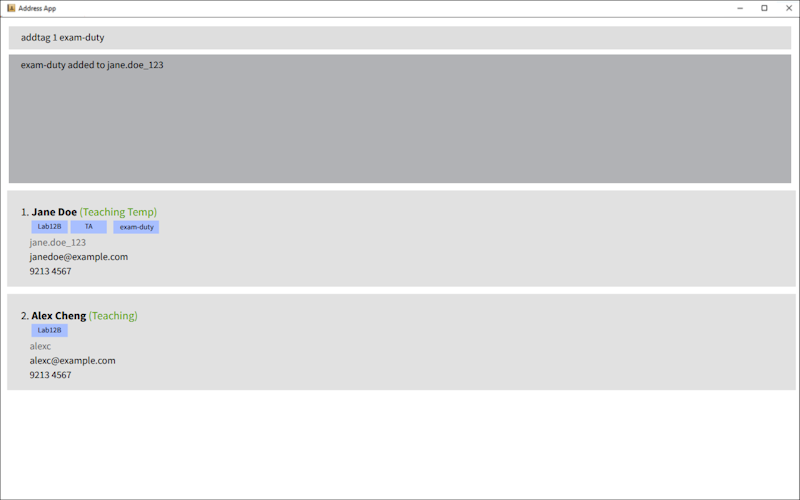
A GUI similar to the below should appear in a few seconds. On a first run with no data file yet, the app loads sample contacts; if a data file already exists at[JAR location]/data/addressbook.json(including an empty contact list), that file is used instead and the list may start empty.
-
Type the command in the command box and press Enter to execute it. e.g. typing
helpand pressing Enter will open the help window.
Some example commands you can try:-
list: Lists all contacts (students and teaching staff). -
add n/John Doe p/98765432 e/johnd@example.com u/johndoe123 t/friends: Adds a student. -
add staff n/Jane Smith p/91234567 e/jane@example.com u/janesmith: Adds a teaching staff member. Position defaults toTeaching Assistantif omitted. -
staffslist: Lists only teaching staff.studentslist: Lists only students. -
tutorslot 2 mon-10-12: Adds Monday 10:00–12:00 availability to the 2nd person in the list (must be teaching staff). -
tutordashboard: Shows all teaching staff and their available time slots. -
delete 3: Deletes the 3rd person shown in the current list (works for both students and staff). -
export: Exports all contacts currently listed to a CSV file. -
import f/./contacts.csv: Imports contacts from a CSV file (generated by theexportcommand) which has the path./contacts.csv. -
clear: Deletes all contacts. -
exit: Exits the app.
-
-
Refer to the Features below for details of each command.
Features
 Notes about the command format:
-
Words in
UPPER_CASEare the parameters to be supplied by the user.
e.g. inadd n/NAME,NAMEis a parameter which can be used asadd n/John Doe. -
Items in square brackets are optional.
e.gn/NAME [t/TAG]can be used asn/John Doe t/friendor asn/John Doe. -
Items with
…after them can be used multiple times including zero times.
e.g.[t/TAG]…can be used ast/friend,t/friend t/familyetc. -
Parameters can be in any order.
e.g. if the command specifiesn/NAME p/PHONE_NUMBER,p/PHONE_NUMBER n/NAMEis also acceptable. -
Input extraneous parameters for commands that do not take in parameters (such as
help,list,staffslist,studentslist,tutordashboard,exitandclear) will result in a format error. -
If you are using a PDF version of this document, be careful when copying and pasting commands that span multiple lines as space characters surrounding line-breaks may be omitted when copied over to the application.
Duplicate contacts
-
Multiple contacts may share the same display name (e.g. two different students both named
John Doe) as long as their phone, email, and username are all distinct. - A contact is rejected as a duplicate person only if it has the same identity as someone already in the book:
same name, phone, email, and username, and—for teaching staff—the same
pos/value (compared case-insensitively; stored asTeaching AssistantorProfessors). The error message is:This person already exists in the address book. - Phone, email, and username must each remain unique across contacts: two people cannot share the same phone number, the same email (see below), or the same username.
-
Email uniqueness is checked in a case-insensitive way: addresses that differ only by letter case (e.g.
A@EXAMPLE.COManda@example.com) are treated as the same email for duplicate detection. The app still stores the email text as you typed it.
Types of tags
Note: Tags must be non-empty
- General purpose tags: Alphanumeric characters only (e.g.
examDuty)- Case-insensitive (e.g.
examDutyandexamdutyare treated as equivalent tags)
- Case-insensitive (e.g.
- Special tags: these tags follow a specific format:
- Tutorial groups: begins with
tut:, followed by an optional uppercase letter and maximally 2 digits (e.g.tut:A11,tut:17,tut:2)- They can optionally be associated with one valid
courseseparated by a dash (-). (e.g.tut:A11-CS2103T) - The associated
coursetag does not have to already be assigned to the given person
- They can optionally be associated with one valid
- Lab groups: begins with
lab:, followed by an optional uppercase letter and maximally 2 digits (e.g.lab:A11,lab:17,lab:2)- They can optionally be associated with one valid
courseseparated by a dash (-). (e.g.lab:A11-CS2103T) - The associated
coursetag does not have to already be assigned to the given person
- They can optionally be associated with one valid
- Course: begins with
course:, followed 2-4 uppercase letters, followed by 4 digits and an optional uppercase suffix letter (e.g.course:CS2103,course:CS2103T,course:GESS1000T)
- Tutorial groups: begins with
Input history
The up and down arrow keys can be used to navigate previously entered commands within the same session.
Behavior:
- Only past commands that were successfully executed (did not produce an error) will be accessible.
- Only 100 of the most recent successfully executed commands are stored in the history at a time.
Viewing help : help
Opens the help window.

Format: help
Behavior:
- Opens the help window and shows the message
Opened help window.in the command result area. - The help window displays a link to the online User Guide.
Adding a student: add
Adds a student to the address book.
Format: add n/NAME p/PHONE e/EMAIL u/USERNAME [t/TAG]…
Parameters:
-
NAME: Required.- Constraints for names:
- Use only letters, numbers, and symbols:
/,,,-,',(,)and. - Cannot be empty or only whitespace.
- Between words, use either:
- a single space ` `,
- hyphen
-, - forward slash
/, - comma and space
,, - period and space
.,
- Must start with an alphanumeric character.
- Must end with either alphanumeric character, closing bracket
)or period.. - Parentheses must be at the end, properly ordered, i.e, open bracket
(must always be followed with close bracket), and non-empty.
- Use only letters, numbers, and symbols:
- Valid Examples:
- John Doe
- David, Tan Ah Khow
- Lily-Rose
- Ronald O’Donald
- Soh La Min (Su La Min)
- Child S/O Father
- Donald Trump Sr.
- J. R. R. Tolkien
- Constraints for names:
-
PHONE: Valid Singapore phone number. Exactly 8 digits in one contiguous block (no spaces or other characters), must start with3,6,8, or9. Must be unique. -
EMAIL: Valid email format. Must be unique (see Duplicate contacts). -
USERNAME: Alphanumeric characters only (no spaces or special characters). Must be unique. Username uniqueness is case-sensitive. -
TAG: Optional; can be used multiple times. See Types of tags for more details.
Examples:
add n/John Doe p/98765432 e/johnd@example.com u/johndoe123add n/Betsy Crowe p/81234567 e/betsycrowe@example.com u/betsycrowe t/friend-
add n/John Doe p/98765432 e/johnd@example.com u/johndoe123 t/course:CS2103- Adds the student John Doe belonging to the course CS2103
Adding teaching staff: add staff
Adds a teaching staff member to the address book.
Format: add staff n/NAME p/PHONE e/EMAIL u/USERNAME [pos/POSITION] [t/TAG]…
Parameters:
-
NAME: Required.- Constraints for names:
- Use only letters, numbers, and symbols:
/,,,-,',(,)and. - Cannot be empty or only whitespace.
- Between words, use either:
- a single space ` `,
- hyphen
-, - forward slash
/, - comma and space
,, - period and space
.,
- Must start with an alphanumeric character.
- Must end with either alphanumeric character, closing bracket
)or period.. - Parentheses must be at the end, properly ordered, i.e, open bracket
(must always be followed with close bracket), and non-empty.
- Use only letters, numbers, and symbols:
- Valid Examples:
- John Doe
- David, Tan Ah Khow
- Lily-Rose
- Ronald O’Donald
- Soh La Min (Su La Min)
- Child S/O Father
- Donald Trump Sr.
- J. R. R. Tolkien
- Constraints for names:
-
p/,e/,u/: Required. -
pos/: Optional. -
PHONE: Valid Singapore phone number. Exactly 8 digits in one contiguous block (no spaces or other characters), must start with3,6,8, or9. Must be unique. -
EMAIL: Valid email format. Must be unique (see Duplicate contacts). -
USERNAME: Alphanumeric only. Must be unique. Username uniqueness is case-sensitive. -
POSITION: Must be one of:Teaching Assistant,Professors(spelling must match; letter case is ignored). The app stores and displays the canonical form (Teaching AssistantorProfessors). If omitted, defaults toTeaching Assistant. -
TAG: Optional; can be used multiple times. See Types of tags for more details.
Behavior:
- Position defaults to
Teaching Assistantwhenpos/is omitted.
Examples:
-
add staff n/Jane Smith p/91234567 e/jane@example.com u/janesmith— Adds teaching staff with default position “Teaching Assistant”. -
add staff n/Dr Lee p/91234567 e/lee@example.com u/drlee pos/Professors t/colleagues— Adds teaching staff with full details.
Listing all persons : list
Shows a list of all persons in the address book (both students and teaching staff).
Format: list
Behavior:
- Shows all persons in the address book.
- If the address book is empty, shows
No contacts found. Add your first contact to get started!
Listing teaching staff only : staffslist
Shows only teaching staff in the address book.
Format: staffslist
Behavior:
- Shows only teaching staff in the address book.
- If there are no teaching staff, shows
No teaching staff found.
Listing students only : studentslist
Shows only students (persons who are not teaching staff) in the address book.
Format: studentslist
Behavior:
- Shows only students in the address book.
- If there are no students, shows
No students found.
Adding a tutor availability slot : tutorslot
Adds an availability time slot to a teaching staff member. This allows tutors and professors to specify when they are available to teach.
Format: tutorslot INDEX SLOT
Parameters:
-
INDEX: Must be a positive integer (1, 2, 3, …) referring to the position of a teaching staff member in the currently displayed list. The person at that index must be a teaching staff member. -
SLOT: Must be in formatDAY-START-END, where:-
DAYis one of:mon,tue,wed,thu,fri,sat,sun(case-insensitive). -
STARTandENDare whole-hour values from 0 to 23.STARTmust be strictly beforeENDon the same day. For example,mon-23-24is invalid becauseENDmust be greater thanSTARTwithin the same day; slots that span midnight (e.g. 23:00–01:00) are not supported. -
24is outside the allowed hour range0-23. - Slots that cross midnight are not supported in the current format.
-
Behavior:
- Adding a
tutorslotonly works for a teaching staff member in the currently displayed list. If you are viewing a mixed list (list), usestaffslistfirst so the index refers to a staff member, or expect an error if the person at that index is a student. - The slot must be a same-day
DAY-START-ENDwhole-hour range withSTART < END; crossing midnight is invalid. - Overlapping time slots on the same day are not allowed for the same person, including exact duplicates. For example,
if a staff member already has
mon-10-12, thentutorslot 1 mon-12-14succeeds buttutorslot 1 mon-11-13fails because it overlaps. - Boundary-touching slots are allowed. For example, if a staff member already has
mon-10-12, thenmon-12-14is allowed because the two slots only touch at the boundary and do not overlap. - Time slots are displayed in the UI beneath the staff member’s contact details (each slot as its own label, with spacing between multiple slots).
- Time slots are persisted in the data file.
- Time slots are discrete. i.e. (11:00-12:00, 12:00-13:00) is different from (11:00-13:00)
- Successful additions are append-only: you can add multiple slots with repeated
tutorslotcommands, but there is no command to edit or remove one slot only. To change slots you may delete the staff contact and re-add them, or edit the data file directly (advanced; see Editing the data file).
Examples:
-
staffslistthentutorslot 1 mon-10-12- Adds Monday 10:00-12:00 availability to the 1st teaching staff. -
tutorslot 2 wed-14-16- Adds Wednesday 14:00-16:00 availability to the 2nd person (must be staff). -
tutorslot 1 fri-9-17- Adds Friday 09:00-17:00 availability to the 1st person (must be staff). - If a staff member already has
mon-10-12, thentutorslot 1 mon-12-14succeeds buttutorslot 1 mon-11-13fails because it overlaps.
Viewing tutor availability dashboard : tutordashboard
Displays a dashboard of all teaching staff and their available time slots, regardless of the currently displayed list.
Format: tutordashboard
Behavior:
- Shows all teaching staff in the address book — not just those visible in the current filtered list.
- For each staff member, lists their time slots sorted by day and start time.
-
Displays
(no slots set)for staff members who have no slots added yet. - If there are no teaching staff, shows
No teaching staff found.
Example output:
Tutor Availability Dashboard (3 tutor(s)):
1. Benson Meier: Mon 10:00-12:00, Wed 14:00-16:00
2. Daniel Meier: (no slots set)
3. George Best: Fri 09:00-11:00
Examples:
-
tutordashboard— Shows the full availability dashboard for all teaching staff. - After
tutorslot 1 mon-10-12, runtutordashboardto confirm the slot was added.
Editing a person : edit
Edits an existing person in the address book. For teaching staff, you can also change their position.
Format: edit INDEX [n/NAME] [p/PHONE] [e/EMAIL] [u/USERNAME] [pos/POSITION] [t/TAG]…
Parameters:
-
INDEX: Must be a positive integer (1, 2, 3, …) referring to the position in the currently displayed list. - At least one optional field must be provided.
-
pos/POSITION: Only applies to teaching staff. Must beTeaching AssistantorProfessors(case-insensitive). If provided while editing a student, an error will be shown.
Behavior:
- Updates the specified fields; unspecified fields are unchanged.
- Same validation constraints as
add/add staffapply. -
Duplicate checks: If you edit a person’s phone, email, or username to match another person’s, the edit is rejected
with the error:
This phone number already exists in the address book,This email already exists in the address book, orThis username already exists in the address book. This ensures phone, email, and username remain unique across all contacts. -
When editing tags, existing tags are replaced (not cumulative). Use
t/with no value to clear all tags. Examples:-
edit 1 p/91234567 e/johndoe@example.com— Edits the 1st person’s phone and email. -
edit 2 n/Betsy Crower t/— Edits the 2nd person’s name and clears all tags. -
staffslistthenedit 1 pos/Professors— Edits the 1st teaching staff’s position to Professors.
-
Adding tags to a person : tag-add
Appends tags to an existing person, without having to respecify all existing tags
Format: tag-add INDEX t/TAG [t/TAG]…
Parameters:
-
INDEX: Must be a positive integer (1, 2, 3, …) referring to the position in the currently displayed list. -
TAG: At least one must be provided. Can be used multiple times. See Types of tags for more details.
Behavior:
- Unlike the
editcommand,tag-addwill not override existing tags. Instead, all tags specified will be added to the person’s list of tags. - A warning will be generated if any of the tags already exist (the command will update the existing entry with the new tag)
- If multiple duplicate tags are present, the first instance will be picked (e.g.
tag-add 1 t/theTag t/thetag,theTagis used)
Examples:
-
tag-add 1 t/needsHelp t/course:CS2103T t/tut:10- Adds tags to indicate that the first visible person is in the course CS2103T who resides in tutorial group 10 and needs help -
tag-add 1 t/course:CS2103T t/course:CS1231S t/tut:10-CS2103T- Adds tags to indicate that the first visible person is in the course CS2103T and CS1231S, specifically in tutorial group 10 of the course CS2103T
Locating persons by name/tag: find
Finds persons whose names contain any of the given keywords and/or who have any of the specified tags.
Format:
find [n/NAME]… [e/EMAIL]… [u/USERNAME]… [p/PHONE]… [t/TAG]…
Note: At least one of NAME, EMAIL, USERNAME, PHONE or TAG must be provided.
Behavior:
-
Name search: Keywords match against person names (case-insensitive)
- The order of keywords does not matter. e.g.
Hans Bowill matchBo Hans - Keywords is matched using substring e.g.
Hanwill matchHans - Persons matching at least one keyword will be returned (i.e.
ORsearch) - All name keywords must comply with name constraints. For instance, the keyword must only start and end with alphanumeric character
- Refer to
addcommand for constraints on names
- The order of keywords does not matter. e.g.
-
Tag search: Tags match against person tags (case-insensitive)
- Persons with at least one matching tag will be returned (i.e.
ORsearch) - Tags will still have to share the same tag type in order to be matched.
- Tags are NOT matched using substring:
friwill NOT matchfriends - Please refer to Types of tags to the format for each tag type
- Persons with at least one matching tag will be returned (i.e.
-
Email search: Keywords match against person emails (case-insensitive)
- Persons matching at least one keyword will be returned (i.e.
ORsearch) - Keywords is matched using substring e.g.
mailwill matchexample@gmail.com - Keywords should be a valid substring of an email
- Refer to
addcommand for constraints on emails
- Persons matching at least one keyword will be returned (i.e.
-
Username search: Keywords match against person username (case-insensitive)
- Persons matching at least one keyword will be returned (i.e.
ORsearch) - Keywords is matched using substring e.g.
icewill matchalice - Refer to
addcommand for constraints on usernames
- Persons matching at least one keyword will be returned (i.e.
-
Phone Sequence search: Each
p/value is a digit-only sequence used to search within stored phone numbers.- Each sequence must be 1 to 8 digits (no spaces or other characters). Values with more than 8 digits are not accepted.
- Matching is by substring on the person’s phone: e.g.
456matches91234567. - Persons whose phone matches at least one given sequence are returned (i.e.
ORsearch acrossp/values).
-
Combined search: If multiple conditions are provided, persons must match at least one keyword in each condition (i.e.
ANDbetween conditions)- For example,
find n/alex n/bernice e/alexyeoh e/berniceyuwill match the following users:- Name:
Alex Yeoh, Email:alexyeoh@example.com(matchesn/alexande/alexyeohonly) - Name:
Bernice Yu, Email:berniceyu@example.com(matchesn/berniceande/berniceyuonly)
- Name:
- For example,
Examples:
-
find n/John— Returns all persons with “John” in their name -
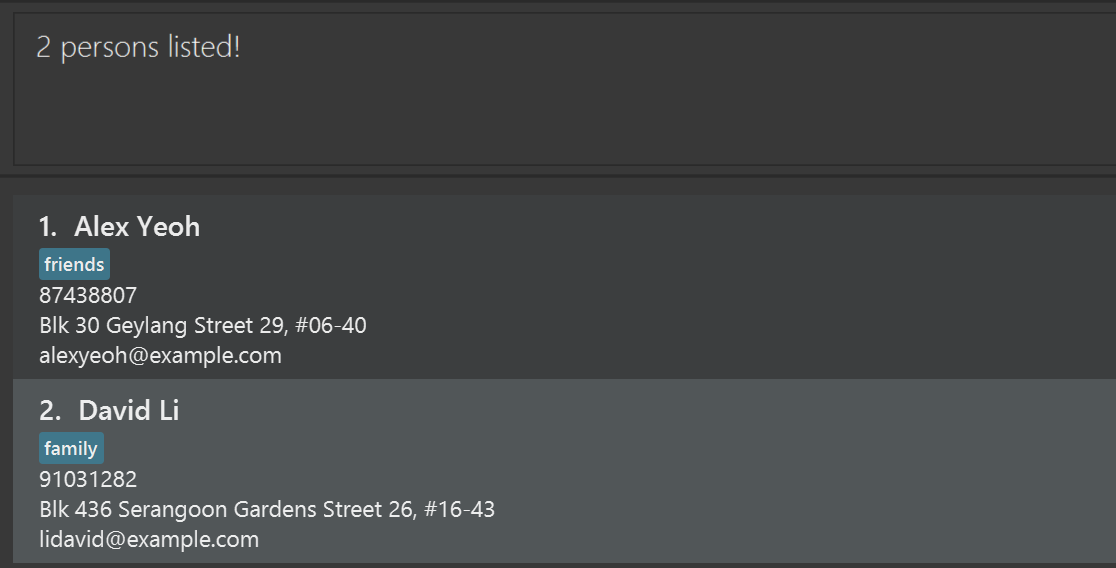
find n/alex n/david— ReturnsAlex Yeoh,David Li, and anyone else with “alex” or “david” in their name -
find t/friends— Returns all persons tagged with “friends” -
find t/colleagues t/important— Returns all persons tagged with either “colleagues” or “important” -
find n/John t/friends— Returns persons with “John” in their name who are also tagged with “friends”
Deleting a person : delete
Deletes the specified person from the address book. Works for both students and teaching staff.
Format: delete INDEX
Parameters:
-
INDEX: Must be a positive integer (1, 2, 3, …). Refers to the position in the currently displayed list.
Behavior:
- Permanently removes the person at that index. The list may be the full list (
list), only staff (staffslist), or only students (studentslist). - Operation cannot be undone.
- You will be asked to confirm before the deletion is carried out.
Examples:
-
listthendelete 2— Deletes the 2nd person in the full list (student or staff). -
staffslistthendelete 1— Deletes the 1st teaching staff in the staff list. -
find Betsythendelete 1— Deletes the 1st person in the find results.
Clearing all entries : clear
Clears all entries from the address book.
Format: clear
 Caution:
This permanently deletes all contacts and cannot be undone. You will be asked to confirm before the operation is carried out.
Caution:
This permanently deletes all contacts and cannot be undone. You will be asked to confirm before the operation is carried out.
Double confirmation
Some commands that are irreversible — currently delete and clear — require you to explicitly confirm before they are executed.
How it works:
- Enter a critical command (e.g.
delete 1orclear). - Doritus displays a prompt:
Are you sure you want to execute the following command? "delete 1" Please type Y to confirm or N to cancel. - Type
Yand press Enter to proceed, orNand press Enter to cancel.
Behavior:
- Typing
Yexecutes the original command. - Typing
Ncancels the command and displaysCommand Cancelled!. - Submitting any input while a command is pending (i.e. waiting for confirmation) will discard the pending command.
-
YandNmust be exact match to confirm, bothYandNare case-sensitive.
Exiting the program : exit
Exits the program.
Format: exit
Exporting contacts : export
Exports all contacts currently listed in the address book to a CSV file. This allows you to share or back up your contacts data.
Format: export [f/FILE_PATH]
Parameters:
-
f/FILE_PATH: Optional. The file path where contacts should be exported. If not provided, exports to the default location (./export.csv). The root of this file path is the working directory of Doritus, which is represented by.. The valid path separator is/.
Behavior:
- Exports all contacts currently listed (both students and teaching staff) in the current address book to a CSV file.
- Contacts exported are affected by commands that alter the view of the address book (eg:
list,staffslist,studentslist,list,find) - If the file already exists, it will be overwritten.
- If the directory of the target files does not exist, Doritus will create the directory recursively
- The CSV file includes contact details such as name, phone, email, username, position, and tags.
Examples:
-
export— Exports contacts to./export.csv(default location). -
export f/contacts.csv— Exports contacts tocontacts.csvin the current directory. -
export f/backup/students.csv— Exports contacts tobackup/students.csv.
Importing contacts : import
Import contacts from the given file path of a csv file generated by the export command.
Format: import f/FILE
Parameters:
-
FILE: Required. Must be a valid file path to a csv file generated from theexportcommand, i.e, import of any other csv file that is not generated byexportis not allowed. The root of this file path is the working directory of Doritus, which is represented by.. The valid path separator is/.
Behavior:
- Only csv files generated by the
exportcommand is accepted, any other csv files will be considered invalid. - Thus, you cannot import any other kind of csv files that may contain contacts but is not generated by the
exportcommand. -
Ensure that the csv file path is valid:
- If you used
export f/./contacts.csv, then the path to the csv file is./contacts.csv. Thus to import the csv file, useimport f/./contacts.csv - If you used
export, then the path to the csv file will be the default path, which is./export.csv. Thus to import the csv file, useimport f/./export.csv
- If you used
- Any csv file generated by
exportbut tampered with, i.e, edited after runningexport, will be considered invalid format forimport, thusimportof such csv files will be not allowed. - Only the contacts who are not currently in the address book will be added.
- If an error occurs during the import, none of the contacts from the csv file will be added.
Examples:
-
import f/./contacts.csv— Imports all contacts fromcontacts.csv.
Saving the data
Doritus’ data is saved on the hard disk automatically after any command that changes the data. There is no need to save manually.
Editing the data file
Doritus data are saved automatically as a JSON file [JAR file location]/data/addressbook.json. Advanced users are
welcome to update data directly by editing that data file.
Caution:
If your changes to the data file make its format invalid, Doritus will discard all data and start with an empty data file at the next run. Hence, it is recommended to take a backup of the file before editing it.Furthermore, certain edits can cause Doritus to behave in unexpected ways (e.g., if a value entered is outside of the acceptable range). Therefore, edit the data file only if you are confident that you can update it correctly.
FAQ
Q: How do I transfer my data to another Computer?
A: Install the app on the other computer and overwrite the empty data file it creates with the file that contains
the data from your previous Doritus home folder.
Known issues
-
When using multiple screens, if you move the application to a secondary screen, and later switch to using only
the primary screen, the GUI will open off-screen. The remedy is to delete the
preferences.jsonfile created by the application before running the application again. -
If you minimize the Help Window and then run the
helpcommand (or use theHelpmenu, or the keyboard shortcutF1) again, the original Help Window will remain minimized, and no new Help Window will appear. The remedy is to manually restore the minimized Help Window.
Command summary
| Action | Format, Examples |
|---|---|
| Add student |
add n/NAME p/PHONE e/EMAIL u/USERNAME [t/TAG]… e.g., add n/James Ho p/82224345 e/jamesho@example.com u/jamesho t/friend
|
| Add staff |
add staff n/NAME p/PHONE e/EMAIL u/USERNAME [pos/POSITION] [t/TAG]… e.g., add staff n/Jane Smith p/91234567 e/jane@example.com u/janesmith or add staff n/Dr Lee p/91234567 e/lee@example.com u/drlee pos/Professors
|
| List all | list |
| List staff only | staffslist |
| List students only | studentslist |
| Tutor slot |
tutorslot INDEX SLOT e.g., tutorslot 1 mon-10-12
|
| Tutor dashboard | tutordashboard |
| Edit |
edit INDEX [n/NAME] [p/PHONE] [e/EMAIL] [u/USERNAME] [pos/POSITION] [t/TAG]… e.g., edit 2 n/James Lee e/jameslee@example.com or edit 1 pos/Professors (staff only) |
| Add tags |
tag-add INDEX t/TAG [t/TAG]… e.g. tag-add 1 t/needsHelp t/course:CS2103T t/tut:10
|
| Find |
find [n/NAME]… [e/EMAIL]… [u/USERNAME]… [p/PHONE]… [t/TAG]… e.g., find n/James Jake t/friends e/james u/jake u/james p/123
|
| Delete |
delete INDEX e.g., delete 3 (index from current list: full, staff, or students) |
| Clear | clear |
| Import |
import f/FILE e.g., import f/./contacts.csv
|
| Export |
export [f/FILE_PATH] e.g., export or export f/contacts.csv
|
| Help | help |
| Exit | exit |